How to install the Cubus Client App on Android
Manual install
- Open the Google Chrome browser on your Android device.
- Visit the website of the PWA you want to install.
- Once the website loads, tap the menu button (usually represented by three vertical dots) located in the top right corner of the browser.
- In the menu, scroll down and look for the “Add to Home screen” option. Tap on it.
- A pop-up window will appear, displaying the app’s name and icon. You can customize the name if desired.
- Tap the “Add” button or “Add to Home screen” to confirm.
- The PWA will now be installed on your device and added to your home screen as an app icon.

How to install the Cubus Client App on iOS
- Open the Safari web browser on your iOS device.
- Visit the website of the PWA you wish to install.
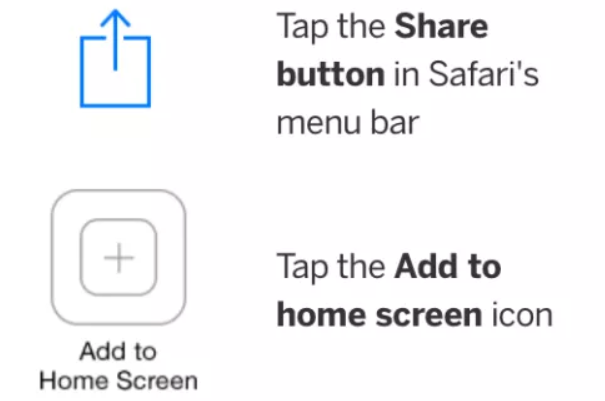
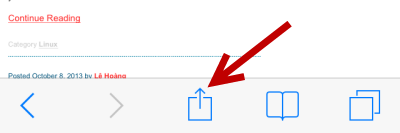
- Once the website loads, tap the Share button at the bottom center of the screen. It resembles a square with an arrow pointing upwards.
- In the Share menu, locate the “Add to Home Screen” option. Tap on it.
- You will be prompted to customize the name of the app and, in some cases, the app’s icon.
- Tap the “Add” button in the screen’s upper-right corner.
- The PWA will now be added to your home screen as an app icon.
- You can launch the PWA by tapping its icon like any other app on your device.